Laptop CareGuide
Laptop Backup: The 3-2-1 Rule and the Data Losses That Taught It
Every laptop drive will fail, be stolen, or meet a coffee eventually. The only question is whether that day costs you an afternoon or years of work. The rule that prevents disaster is short enough to remember and cheap enough to follow.
Quick answer
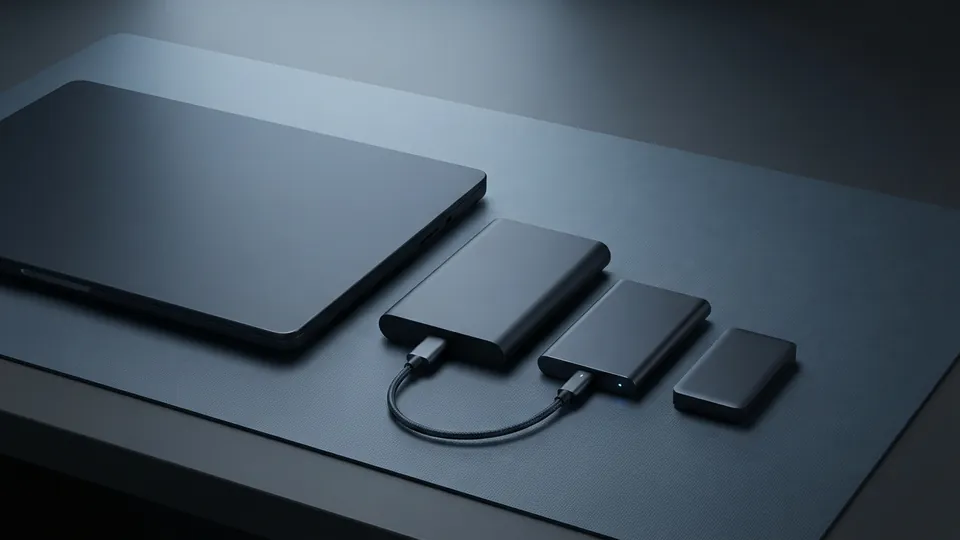
Keep three copies of anything you care about: the original on the laptop, an automatic backup to an external drive (File History on Windows, Time Machine on Mac), and a copy somewhere else, usually a cloud backup or sync service. Test a restore once a year.
On this page
Sync is not backup
The most common false sense of security is a cloud sync folder. Sync keeps a folder identical everywhere, which means when you delete a file by mistake, or ransomware encrypts it, the damage syncs too. Most services keep deleted versions for 30 days, which covers a lot of mistakes but not the ones you notice in month two. A backup, by contrast, is a separate copy taken on a schedule and kept even when the original changes. You want both: sync for convenience, backup for recovery.
| Method | Protects against | Does not protect against | Effort |
|---|---|---|---|
| External drive with File History / Time Machine | Drive failure, accidental deletion, bad updates | Theft or fire that takes the drive too | Plug in weekly |
| Cloud sync folder | Laptop loss, working across devices | Deletion or ransomware synced everywhere (beyond the version window) | None once set up |
| Cloud backup service | Everything above, including fire and theft | Very large restores are slow | None once set up |
| Second external drive kept elsewhere | Fire, theft | Anything that happened since the last swap | Swap monthly |
| Full disk image | Total drive failure, fast return to a working machine | Nothing on its own; pair with file backup | Monthly |
Set it up in 30 minutes
Buy one external drive
A portable drive of at least twice the laptop's storage. A solid-state drive is faster and survives being dropped; a spinning drive is cheaper per terabyte. Either is fine.
Turn on the built-in tool
Windows: Settings, search for Backup, then File History (or Windows Backup for folder sync to your account). Mac: System Settings, General, Time Machine, Add Backup Disk. Leave the defaults; they back up your user folders on a schedule whenever the drive is connected.
Add the off-site copy
Either subscribe to a cloud backup service that backs up the whole machine continuously, or make sure your documents and photos live inside a synced cloud folder with version history. For irreplaceable things such as family photos, do both.
Test a restore
Delete a test file, then bring it back from the backup. A backup you have never restored from is a hope, not a plan.
Data losses that made the point
The old post on this site collected embarrassing data losses, and the pattern holds today. Government departments have lost unencrypted laptops on trains holding millions of personal records. A well-known animation studio came within hours of losing an entire film to a stray delete command, saved only because one employee had a copy at home for other reasons. Hosting companies have lost customer sites to a single failed disk array with backups that turned out to be on the same array. Countless students have lost a thesis to a laptop bag left in a taxi. What unites them is not bad luck but a single copy, or copies that all lived in the same place.
Encrypt the laptop too
Backup protects you from losing data; encryption protects you from someone else finding it. Windows laptops with a Microsoft account usually have device encryption on already (check Settings, Privacy and security, Device encryption); Macs use FileVault, which is on by default on recent models. Store the recovery key somewhere outside the laptop. Encrypt the external backup drive as well: File History and Time Machine both offer it when you set up the disk.
This plan sits alongside the other laptop maintenance guides. Backups matter most at the worst moments: when you are locked out and need to reset a forgotten Windows password, or when an old battery finally fails, which the laptop battery life guide helps you see coming, or when heat finally kills a drive, a risk the overheating and safety evidence explains. A backup also preserves the history of your writing; version history as proof of authorship explains why that record matters.
Common questions
How often should I back up my laptop?
Automatically and continuously to the cloud, plus to an external drive at least weekly. The built-in tools do this for you once the drive is plugged in.
Is cloud storage a backup?
Sync services are not, on their own, because deletions and changes sync too. They help, especially with version history, but pair them with a real backup.
How big should the backup drive be?
At least twice the laptop's drive so the backup tool can keep older versions. A 2 TB portable drive covers most laptops for years.
What should I back up first if I am short on time?
Documents, photos and anything you created. Programs and the operating system can be reinstalled; your files cannot be re-created.
Do I need a full disk image?
Not for most people. It is useful if you need to be back at work within an hour after a drive dies; otherwise a fresh install plus a file restore is fine.
Sources
- Apple Support: Back up your Mac with Time Machine: automatic backups to an external drive on a mac.
- Microsoft Support: Backup and restore with File History: automatic file backups to an external or network drive on windows.
- Microsoft Support: Device Encryption in Windows: encrypting a windows laptop drive.
- Apple Support: Protect data on your Mac with FileVault: encrypting a mac laptop drive.